Showing posts with label tools. Show all posts
Showing posts with label tools. Show all posts
Tuesday, October 20, 2009
Linkpool: TortoiseSVN and Password to SVN
TortoiseSVN does not allow save password to SVN. This forces entering it many times during the day. Fortunately there is a workaround and Ditching the Password Prompts in TortoiseSVN explains how.

Friday, October 2, 2009
Hiding Applications to Tray
Thursday, October 1, 2009
Remote Controller for Windows Mobile Devices
Couple of years ago when I was developing for Windows Mobile devices I used Pocket Controller as remote controller. It costs money but we had licenses for it.
Recently I joined Excitor company as WM client developer and had to find freeware alternative to Pocket Controller. I found great application EveryWAN Remote Support. It has free personal edition with the only limitation: device has to be connected to desktop via ActiveSync using USB or Bluetooth. It's OK for development purposes, so EveryWAN Remote Support Personal Edition is a great replacement of Pocket Controller.
Wednesday, June 17, 2009
Setup Eclipse for BlackBerry Storm development
I've spent many hours trying to install BlackBerry plug-in v4.7 (needed to develop for Storm) on Eclipse and finally I found solution. As always solution was in one small detail. Here is the whole way to setup environment.
INSTALL J2SE
Download and install Java SE Development Kit. Personally I used JDK, but I think JRE should work as well.
INSTALL ECLIPSE
Download and install (actually unpack) Eclipse IDE for Java Developers if you don't have one. I must say that BlackBerry plug-in for Eclipse contains this IDE, but who knows what version did they pack into plug-in installer.
Download and install (actually unpack) Eclipse IDE for Java Developers if you don't have one. I must say that BlackBerry plug-in for Eclipse contains this IDE, but who knows what version did they pack into plug-in installer.
DOWNLOAD COMPLETE ECLIPSE SOFTWARE UPDATE
Once you checked that your Eclipse is working you need to install BlackBerry Eclipse plug-in. Go to BlackBerry JDE Plug-in for Eclipse and download Full Installer and Eclipse Software Update for the BlackBerry JDE v4.7 Component Pack.
Once you checked that your Eclipse is working you need to install BlackBerry Eclipse plug-in. Go to BlackBerry JDE Plug-in for Eclipse and download Full Installer and Eclipse Software Update for the BlackBerry JDE v4.7 Component Pack.
INSTALL ECLIPSE BLACKBERRY PLUGIN
Install plug-in from Full Installer first. It will ask you to install new Eclipse or specify existing one. Just point to your Eclipse folder and proceed installation process.
Since Full Installer does not provide you with Storm emulator and v4.7 platform you need to install v4.7 Component Pack. RIM web site suggests to install this update using update site. Don't do it. If you already tried to go this as discribed in instructions you will need to perform step 4. Here is correct way to install update:
SETUP ECLIPSE TO USE BLACKBERRY 4.7 JDK
Now you will have 4.7 installed, but not set as default. You need to change default component from 4.5 to 4.7.
To do so you need to:
That's it. Now you can start playing with Eclipse environment for BlackBerry.
Install plug-in from Full Installer first. It will ask you to install new Eclipse or specify existing one. Just point to your Eclipse folder and proceed installation process.
Since Full Installer does not provide you with Storm emulator and v4.7 platform you need to install v4.7 Component Pack. RIM web site suggests to install this update using update site. Don't do it. If you already tried to go this as discribed in instructions you will need to perform step 4. Here is correct way to install update:
- 1. Run Eclipse
- 2. Go to Help > Software_Updates
- 3. Switch to Available_Software tab
- 4. Make sure that you don't have a link to "http://www.blackberry.com/go/eclipseUpdate" there. If you have follow step 4.1 otherwise jump to step 5.
- Remove link to RIM update site using Manage_Sites button.
- 5. Add new site like this:
- Click Add_Site button.
- Click Archive button and select update file downloaded earlier.
- Click OK.
- 6. Check this new node in the list of available software and click Install button.
- 7. Follow instructions in installer.
Now you will have 4.7 installed, but not set as default. You need to change default component from 4.5 to 4.7.
To do so you need to:
- Create new workspace and add BlackBerry project (File > New > Project and pick BlackBerry project).
- Go to BlackBerry > Configure_BlackBerry_Workspace in Eclipse main menu.
- Navigate to BlackBerry_JDE > Installed_Components
- And change component from 4.5 to 4.7
P.S.
There are some problems with simulator under Eclipse. I wrote about this in BlackBerry simulator in Eclipse could work better.
There are some problems with simulator under Eclipse. I wrote about this in BlackBerry simulator in Eclipse could work better.
BlackBerry simulator in Eclipse could work better
Yesterday I finally installed BlackBerry plug-in for Eclipse, but I'm disappointed by simulator integration with IDE.
For some reason BlackBerry simulator does not do it's best when developing using Eclipse. Most of the time I cannot run application twice from Eclipse. I have to restart simulator for second attempt to run my app.
It takes some time. So I found a faster workaround. When I see this kind of problem I:
- rebuild project (Alt+B)
- manually delete application from simulator (Select app in Downloads; Menu > Delete; Click Delete to confirm)
- manually load application to simulator (File > Load_Java_Program from simulator menu)
This is much faster then restarting simulator every time problem occurs.
Unfortunately this works only when I don't need to debug code. I still have to restart simulator when debugging.
Friday, May 22, 2009
How to bring back "File Explorer" window in Eclipse DDMS
I accidentally closed File Explorer in DDMS view in Eclipse. Unfortunately I couldn't just use context menu to bring it back. It takes a longer way to fix such a mistake.
You'll have to do this using main menu:
You'll have to do this using main menu:
- Window > Show View > Other...
- Under "Android" node there is "File Explorer"
- Select it and click OK.
Friday, May 15, 2009
BlackBerry and Android platforms
Next project I'll be working on will be for cell phones. I'm not sure about the platform (we're thinking of BlackBerry or Android).
So last four days I spent checking out their SDKs. I'd like to share my impression of them.
Let me break it into several steps I went through.
Web site
Android site looks positive and leaves a feeling of openness.
BlackBerry web site looks more like a part of business and does not provide positive emotions. On the same time I felt like these guys from RIM didn't finish their job. I don't complain about the need to register (that's not a big deal), but forms for registration and downloading are like unfinished paintings. Looks fine, but doesn't feel good.
And a few words about the content. I think that content is pretty good on both sites. Probably it is better structured on Android site. Special thanks to BlackBerry for videos: it's faster than reading and it inspires to eat it all (when I read sometimes I skip parts to come back in minute which is not productive, but it's a habit I'm fighting with).
Installation
Android is a winner here. No issues at all, just followed instructions on web site.
Installing BlackBerry took much more time. And I must confess that I couldn't install Eclipse plug-in. After fighting for an hour (half of which took the download itself) I quit. That was after I installed and tried BlackBerry JDE otherwise I would proceed fighting with installer. Installing BlackBerry JDE did not bring much problem thanks to a tip with PATH variable (http://moazzam-khan.com/blog/?p=52).
Playing with development
Two main points here are: I liked Eclipse more then BlackBerry JDE and there is Eclipse supports drag&drop designer to create forms for Android.
Second one is a big plus because it allows to not digging into xml used to present forms for Android. Also looks like there is more standard GUI controls for Android.
In general working with Android brings a bit more pleasure.
Running/debugging and Emulator
When working with Android all you need to do is run your code from Eclipse and it will automatically started on emulator.
With BlackBerry the story is not so clear. After running application from BlackBerry JDE you need to manually go to Downloads menu item in emulator and run app there. After this JDE will hook up application and debug will be available.
Also I'd like to say that I had to create AVD (Android Virtual Device) for SDK version 1.5 because after installing SDK 1.5 I had emulator only for version 1.1. It was pretty simple following instructions from Android developers site.
Documentation
Both SDKs have good documentation. Android has clearer documentation and because it is on developers site it leaves a better feeling.
So my opinion is that developing for Android should bring more positive emotions to the life.
Monday, March 16, 2009
Borland C++ 3.1
Today I needed to check some code in C++ and decided to use old good Borland C++ 3.11 just because it's fast to install it.
Unfortunatly I found out that my copy of it died together with my external drive :((
I must confess that it was not such an easy thing to find working download link on the web. But I found one at http://www.eni4ever.com/downloads.php?cat_id=1. This page also contains links to some old IDEs for other languages.
Unfortunatly I found out that my copy of it died together with my external drive :((
I must confess that it was not such an easy thing to find working download link on the web. But I found one at http://www.eni4ever.com/downloads.php?cat_id=1. This page also contains links to some old IDEs for other languages.
Friday, January 16, 2009
Couple of words about Adobe Reader odd behavior
I guess almost everybody use Adobe Reader to read pdf documents. I'm the one of this army of users.
Recently I've detected one strange behaviour of this product:
Recently I've detected one strange behaviour of this product:
- Sometimes I close my laptop while using Adobe Reader in maximized window. This results in going to sleep mode for the a display (laptop itself operates as usual).
- When I open laptop, for some reason Adobe Reader doesn't use maximized window although the its window covers all client space on the screen. This is pretty strange, because all other applications does not have such a problem.


I'm using Dell Inspiron 6400 and Adobe Reader 8.
Saturday, January 10, 2009
Using VMWare on computer with wide screen
I'm using VMWare for development for years now. I started using it when I had to work simalteniously on several projects that required different versions of same development tools.
I liked it very much so later on I decided to use VMWare at my home laptop as well. But with the great benefit one issue arised. I used to work in my virtual machines using full screen mode. The thing is that at my work I had a PC with regular 4:3 display (at least it was regular size four years ago), but my laptop has a widescreen. For some reason resolutions for widescreens are not available in virtual machine (in my case it should be 1280x800).
After some surfing in the Web and several trials I finally found a solution that works. Today I set up new VM from scratch and ancountered same issue. So I decided to post this solution on the Web. I hope this will help you to save some time solving the same issue.
Here is the solution:
I liked it very much so later on I decided to use VMWare at my home laptop as well. But with the great benefit one issue arised. I used to work in my virtual machines using full screen mode. The thing is that at my work I had a PC with regular 4:3 display (at least it was regular size four years ago), but my laptop has a widescreen. For some reason resolutions for widescreens are not available in virtual machine (in my case it should be 1280x800).
After some surfing in the Web and several trials I finally found a solution that works. Today I set up new VM from scratch and ancountered same issue. So I decided to post this solution on the Web. I hope this will help you to save some time solving the same issue.
Here is the solution:
- Start your virtual machine.
- Run "Registry Editor" (Start > Run > regedit.exe) in it.
- Select the registry key HKEY_LOCAL_MACHINE\SYSTEM\CurrentControlSet\Services\vmx_svga\Device0.
- Add a new string-value key for the desired resolution (RightClick > New > String Value) using the form of Resolution.x for the value name. For example: Name = Resolution.0; Value = 1280x800.
- Exit "Registry Editor".
- Shut down your VM.
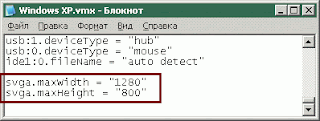
- Add max width and height to "vmx" file of your VM as follows: svga.maxWidth = "1280" and svga.maxHeight = "800". Just open this file using Notepad and add strings at the end like this:
- Uncheck autofit for the guest in VMWare (View > Autofit Guest).
- Start your VM and set new resolution in "Display Properties".
Subscribe to:
Posts (Atom)


 Posts
Posts

